.png)
Instructions
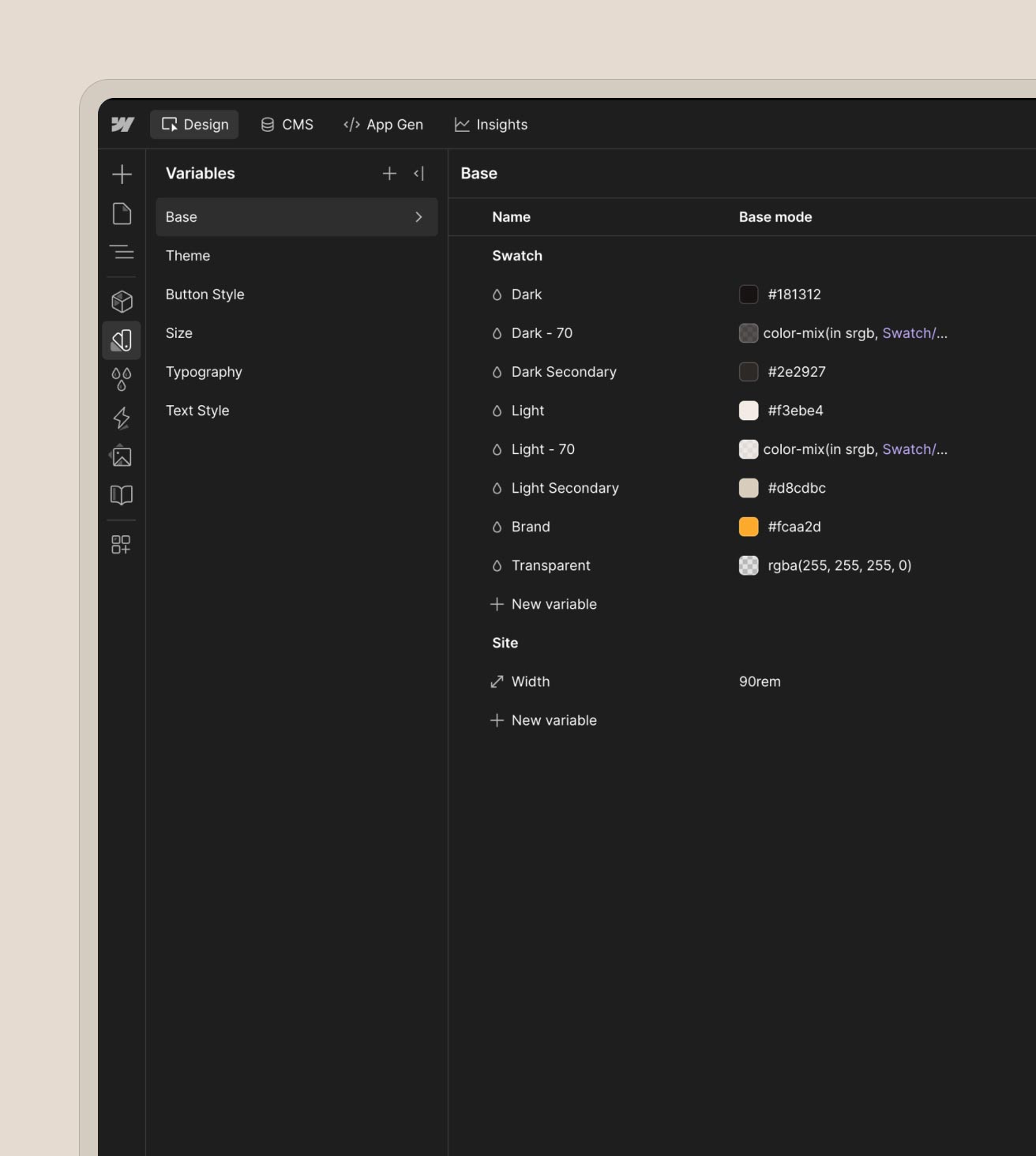
Update variables
Start by customizing global colors, fonts, theming and font sizing using variables. This ensures all styles update site-wide, keeping your design consistent with minimal effort. To do this, access the variables in the menu on the left. Work through the different variables, updating everything needed to match your brand.
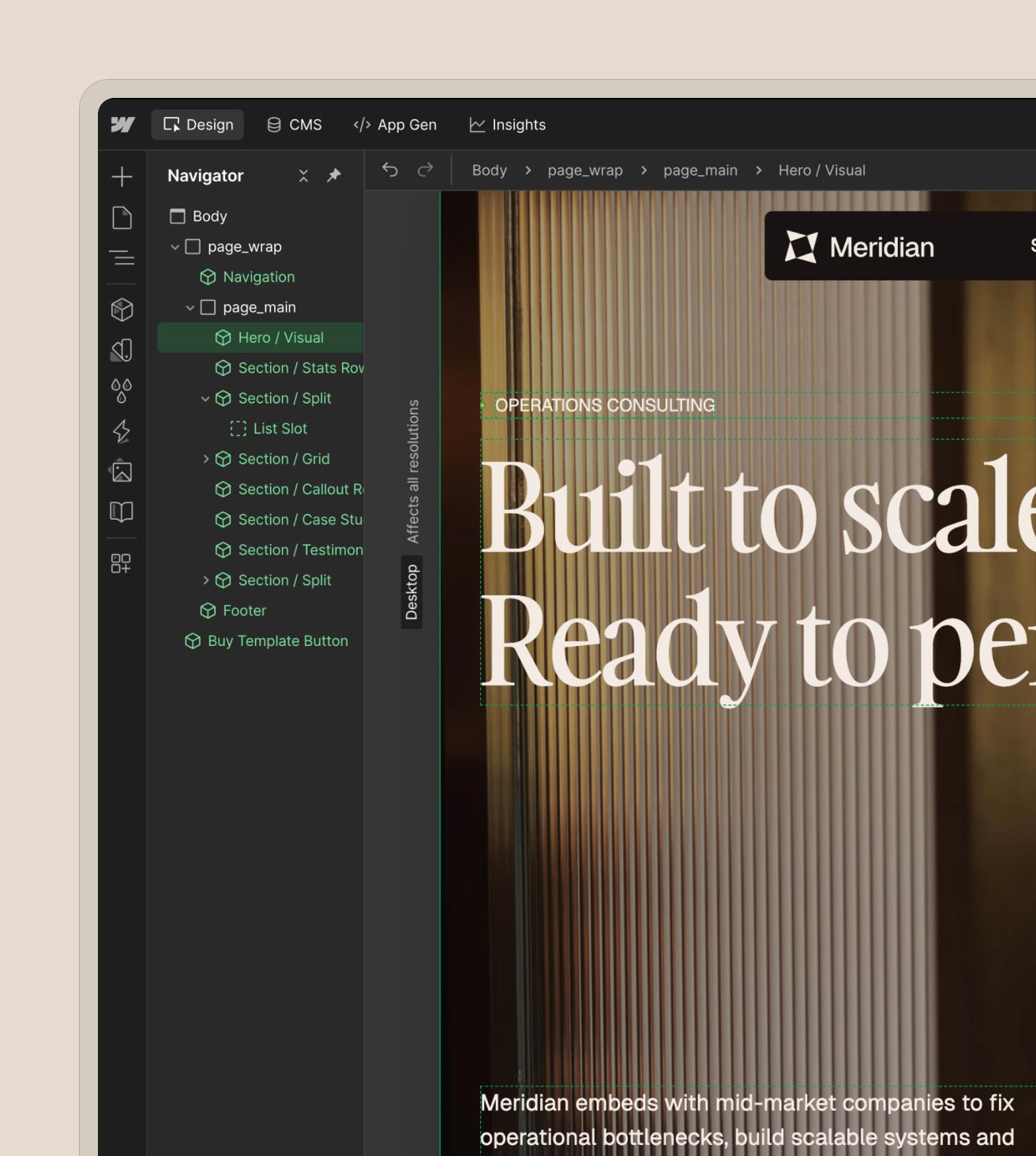
Customize pages
Each page is built with modular section components that can easily be edited or removed. Take a look at the Components page to see all reusable components available to use on the template.
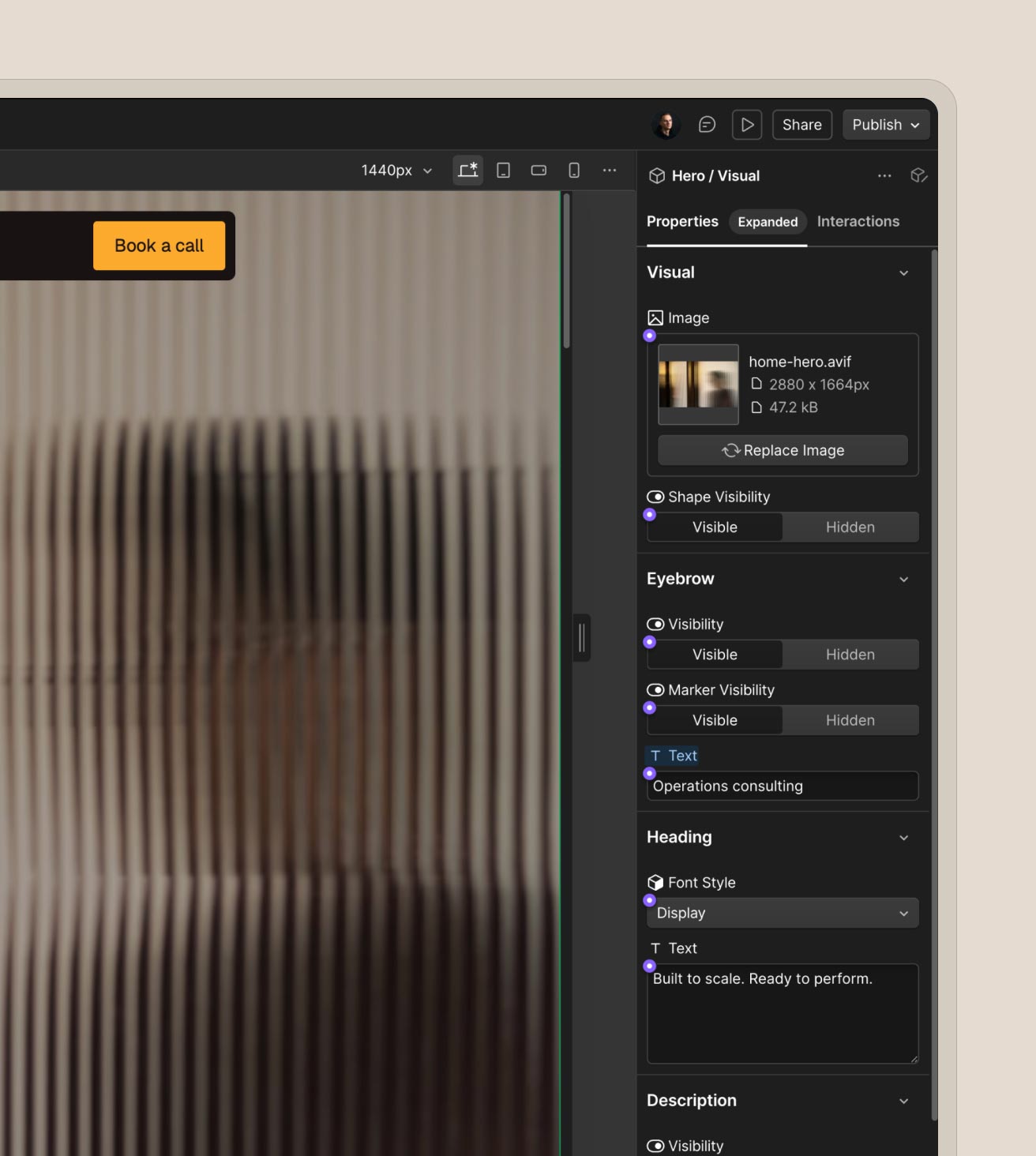
Update content
Easily update text, images and styling properties directly from component settings. No need to adjust individual elements – just tweak properties for instant updates.
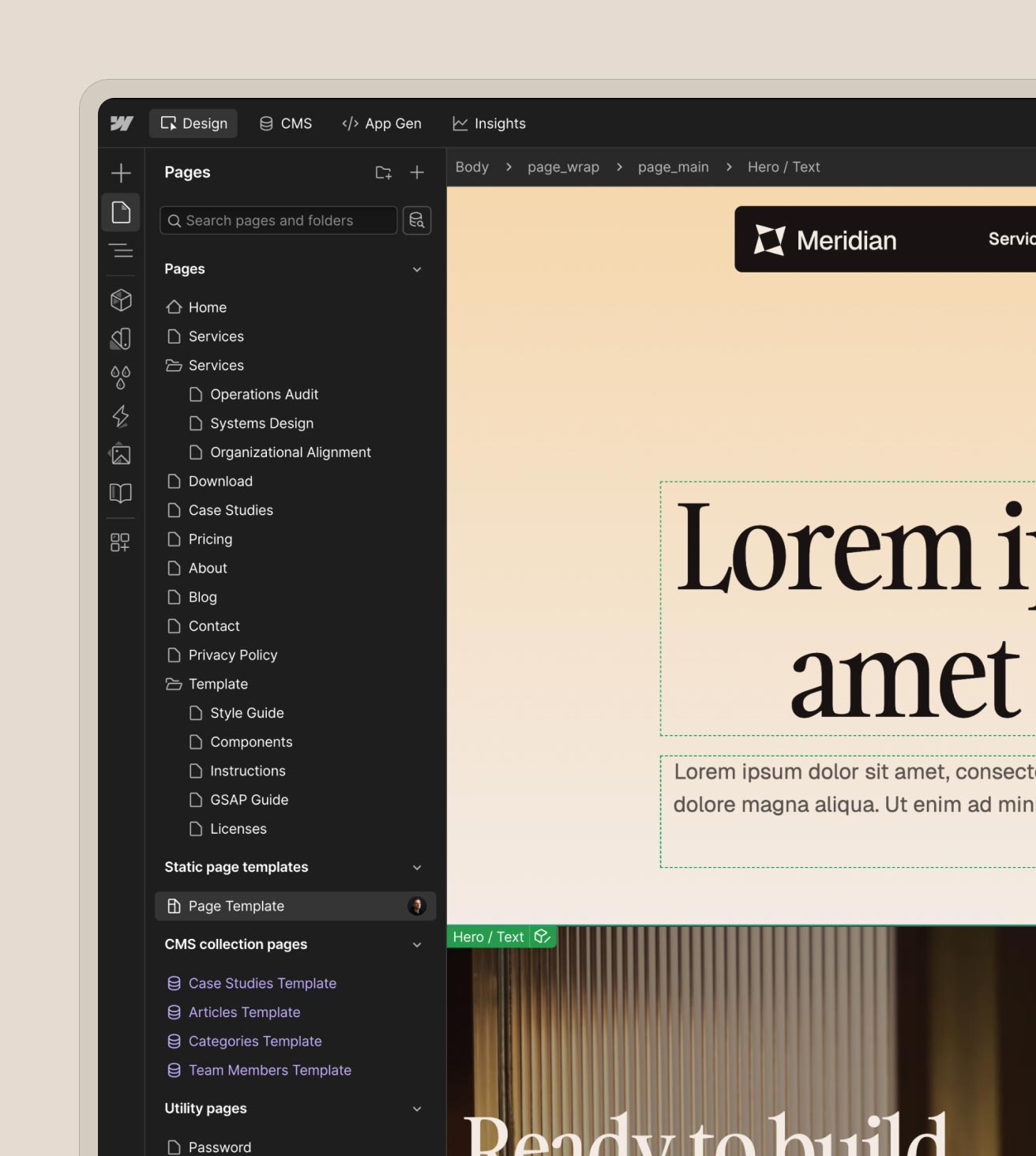
Building new pages
Start from a pre-built Page Template and build an entirely new page in minutes using the modular section components.
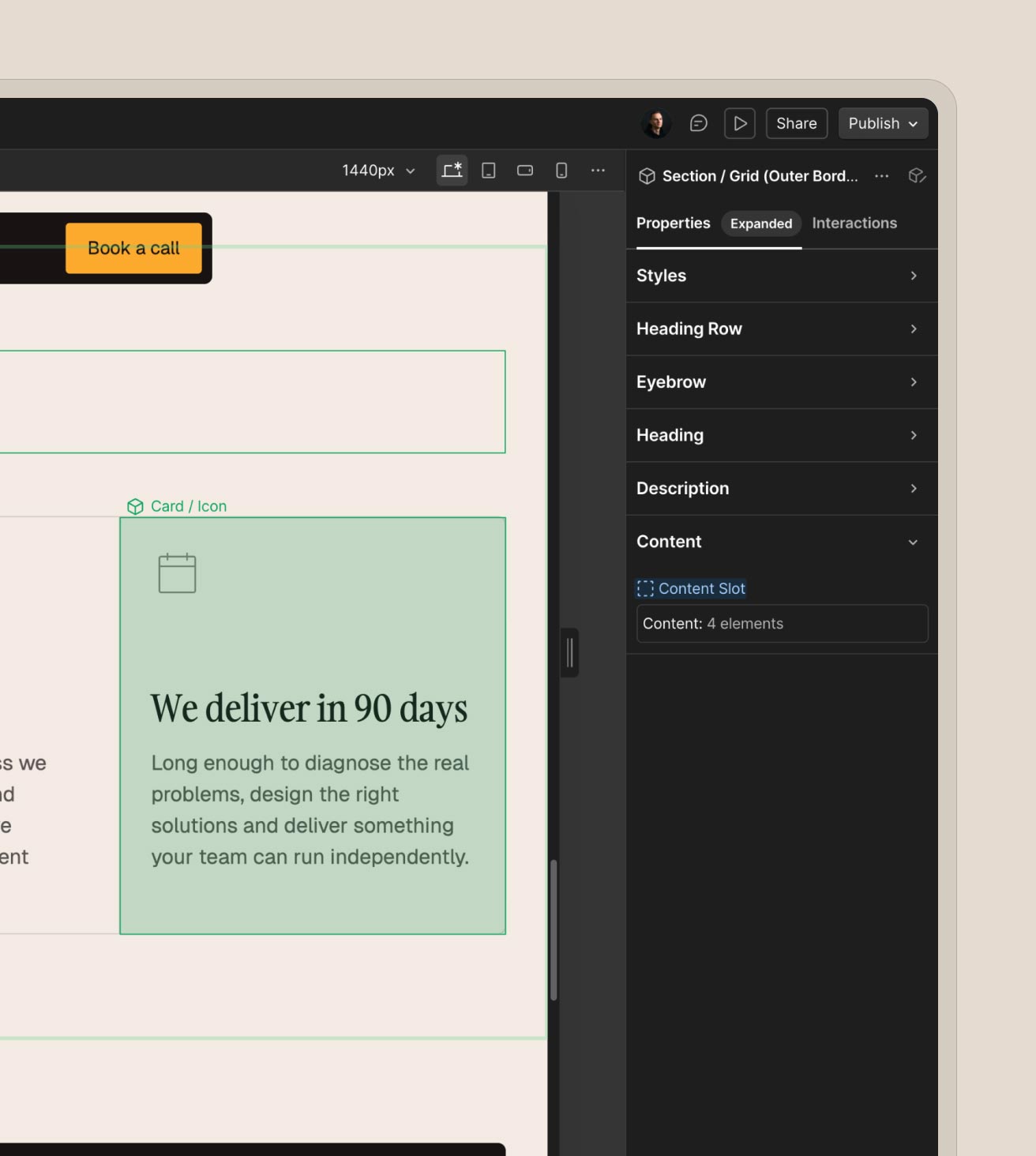
Component slots
Some components include slots. Slots make it easy to mix and match smaller components within larger sections, giving you more flexibility while maintaining consistency.
I started South Bay Growth because I believe great local businesses deserve the same digital expertise as the biggest brands. I love helping small businesses and mom-and-pop shops get discovered, reach more people in their community, and spend more time focusing on what they do best.

founder, south bay growth